Seb's insturctions:
Scenario 3 (restarting device starts mailbox on boot if mailbox setup has been started but not finished yet, i.e. setup has reached qr-code stage, but pairing not yet complete for example because just not scanned by briar yet)
- Reset data for mailbox app or uninstall and reinstall.
- Start mailbox app, proceed until qr code is visible.
- Restart device. Confirm that mailbox app does start up automatically after boot
Huawei P40 Lite 5G - tested with build 98de16246df16a150f4f7e6acc42747a1f155c1a
- while the do not kill me fragment/power management screeen is displayed and after I click on button Open Battery Settings, I then manually selected device settings > apps > app launch > Manage manually (deselect Manage Automatically) - and select all three options (see screenshot)
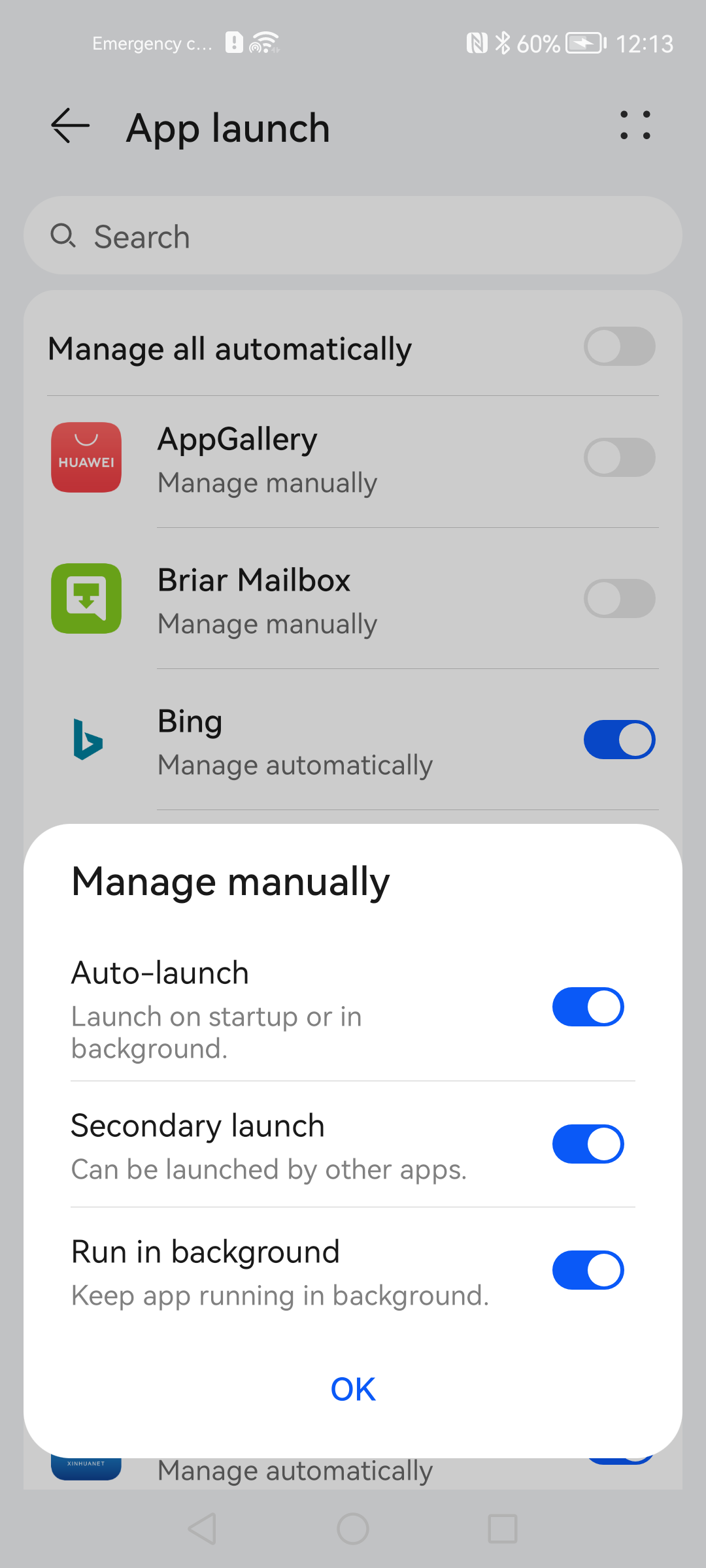
- after that I went back to mailbox and clicked Continue which open the QR code screen.
- restarted device while the QR code is displayed but not scanned yet
- Mailbox should restart automatically - which it does and currently (14/09/22) displays the power management screen first, and then when the user taps on Battery Settings and Continue buttons, the QR code is displayed
- I checked the Manage Manually setting in the device settings > apps > app launch and it is still ON - which means the mailbox will restart at the next reboot as well
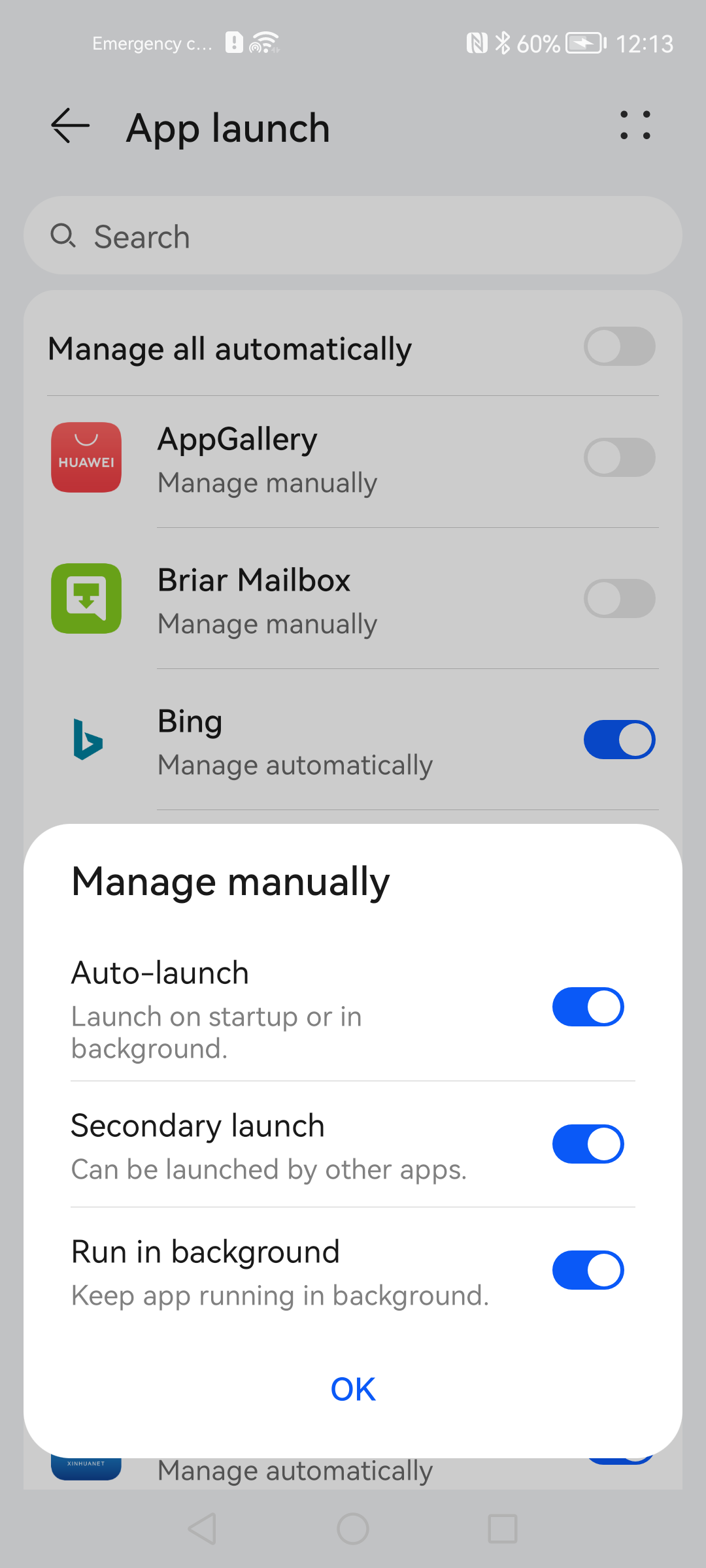
Just for completeness... the power management screen also shows in these cases:
- when the mailbox device is rebooted while displaying the QR code, but before the QR code is scanned. After reboot, the power management screen shows and the Continue button is disabled - mailbox not linked yet to Briar. Tapping on Battery Settings button enables the Continue button and then QR code is displayed again.
- after wiping mailbox locally and restarting it (before the QR code is displayed)
- after wiping mailbox remotely and restarting it (before the QR code is displayed)
- after user cancels the setup and goes back to setup again (befor ethe QR code is displayed)
Steps to execute:
Try to restart the Mailbox device at different points during the onboarding process:
- during the intro screens (for example after the first couple of them)
- immediately after the 'do-not-kill-me' fragment has been displayed
- afte the "Allow connections" button has been tapped
- when the QR code is displayed
- Immediately after the QR code has been scanned by Briar but before the status screen shows 'connected' (if that is possible by user action)
Use different devices for different steps, or even a few devices for each step to achieve better coverage.
Expected results:
- after the reboot, depending on what stage the mailbox startup process has arrived to before the reboot, the notification should show one of these following messages:
- Mailbox is starting
- Mailbox is setting up
- Mailbox is running
Tapping on these notification messages should open the mailbox app and bring it into the foreground. What screen is shown to the user depends on what message has been tapped:
- Mailbox is starting - starting and progress screen, then QR code
- Mailbox is setting up - QR code
- Mailbox is running - mailbox status screen
Repeat in landscape and protrait